
TL;DR
- Control Tinder alerts in two places: Tinder > Settings > Notifications and iOS Settings > Notifications > Tinder.
- If notifications don’t show, check Focus (Do Not Disturb), Show Previews, and that Allow Notifications is on.
- You can fine-tune lock screen, banner, sounds, and badges in iOS per-app settings.
- iOS 17–18 adds extras like StandBy and notification summaries—useful, but they can hide alerts if misconfigured.
Dude Hack Exclusive Offers


Turning Tinder Notifications On (And Off) Through The Tinder App
First Method
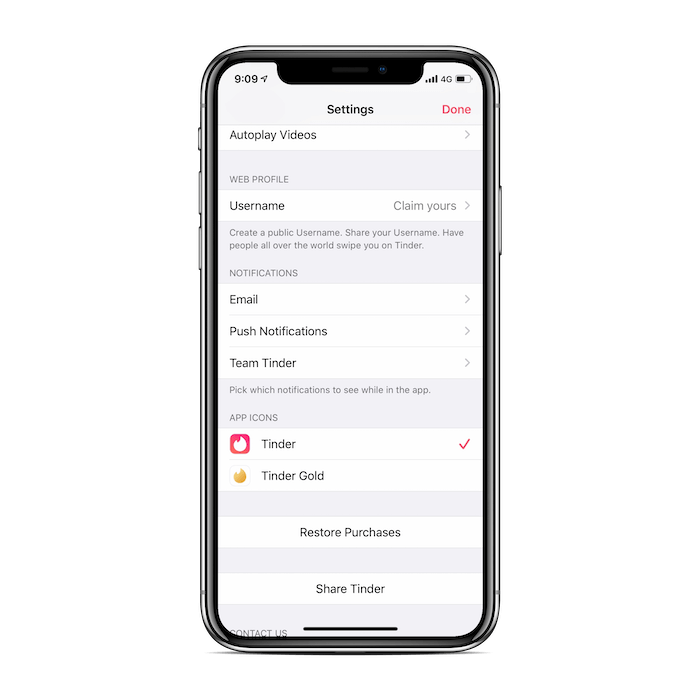
- Open Tinder and tap your profile icon.
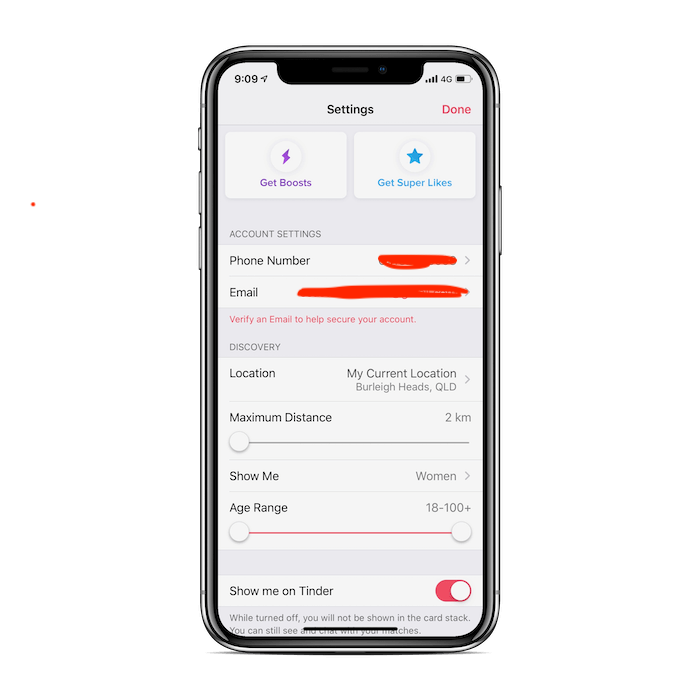
- Go to Settings > Notifications.
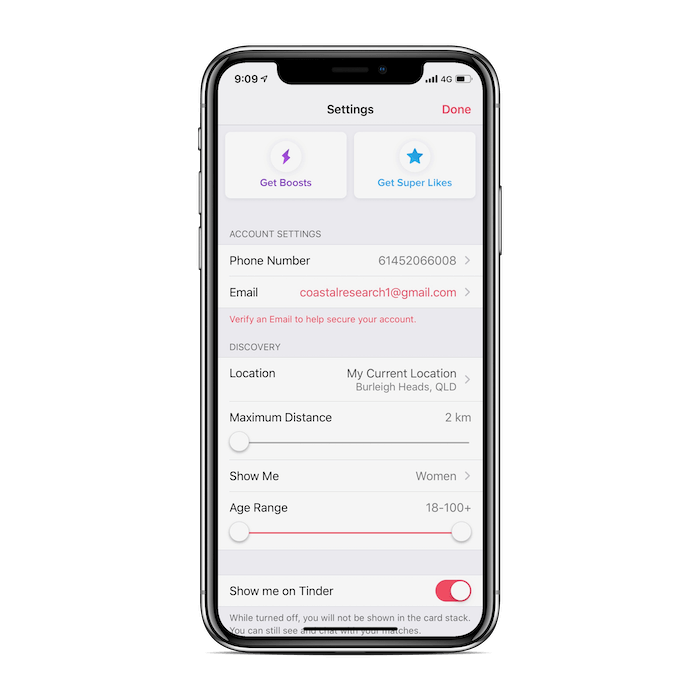
- Toggle Push Notifications on or off, and mix-and-match which alerts you want (messages, matches, likes, etc.).
Second Method
- Open any Tinder conversation; if you see Enable Push Notifications, tap it.
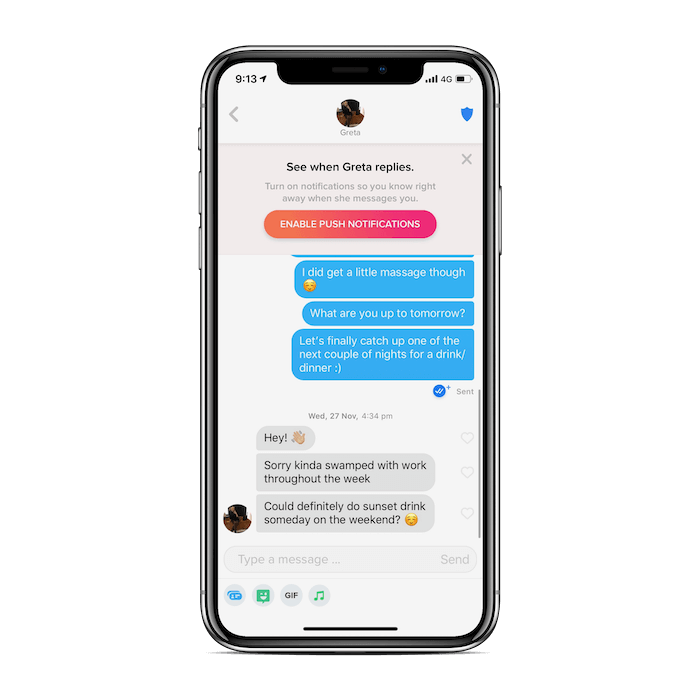
- Follow the prompts to allow notifications, then select the types you want.
Turning Tinder Notifications On (And Off) Through iPhone Settings
First Method
- Open Settings on your iPhone and tap Notifications.
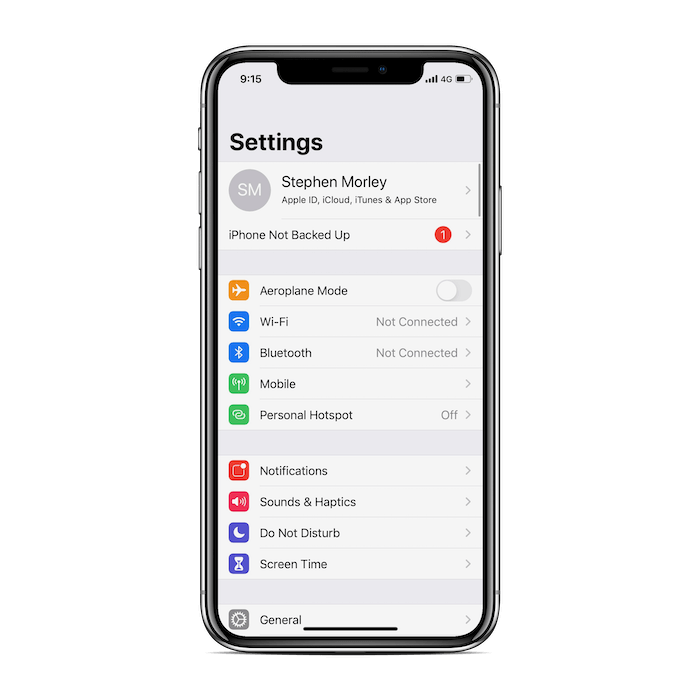
- Scroll to Tinder and tap it.
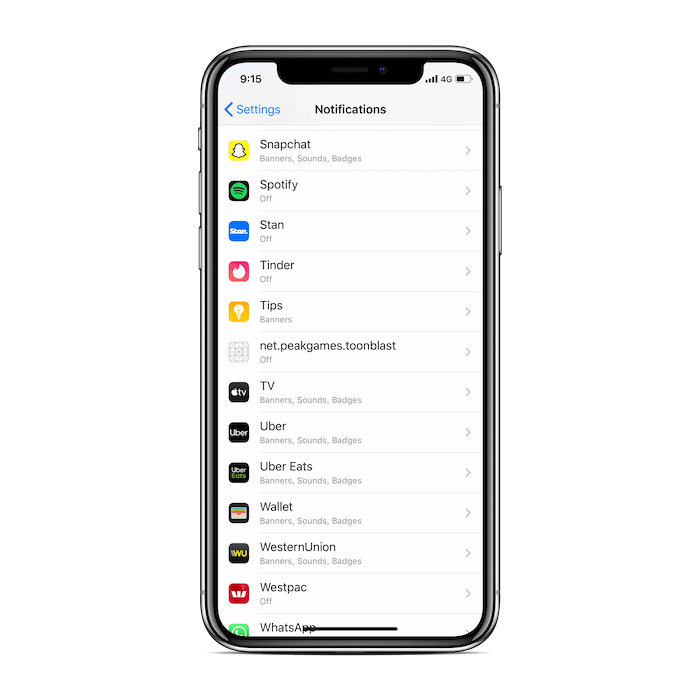
- Switch Allow Notifications On/Off.
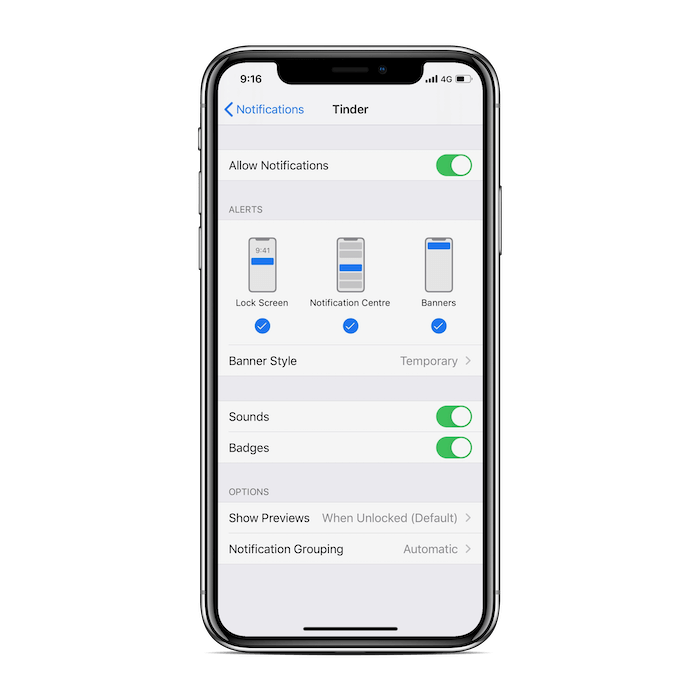
- (Optional) Choose where alerts appear (Lock Screen, Notification Center, Banners), set Banner Style, Sounds, and Badges.
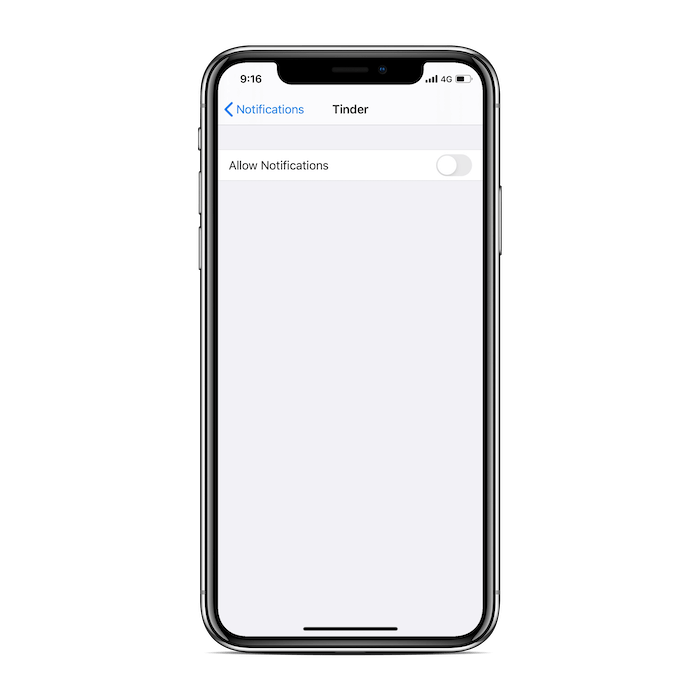
Second Method
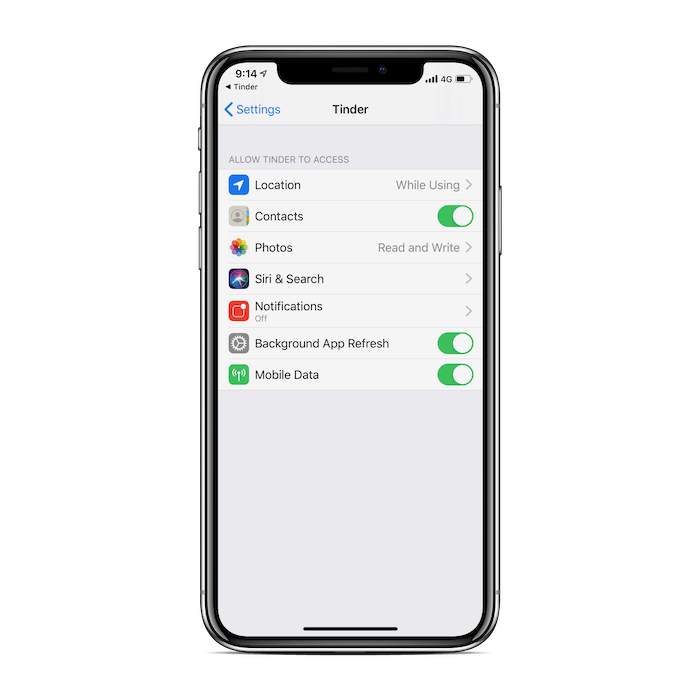
- Open Settings > Tinder.
- Tap Notifications.
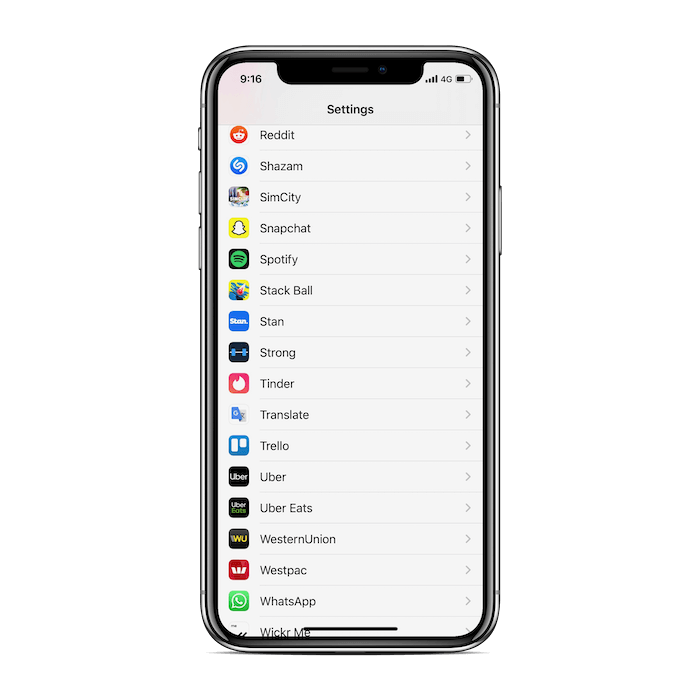
- Turn Allow NotificationsOn/Off, then customize alert style, sounds, and badges.
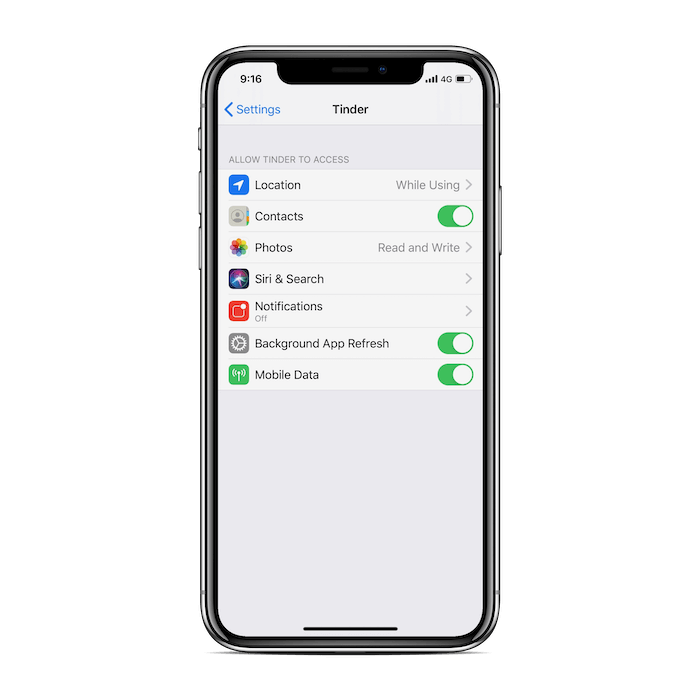
Tinder Notifications Not Working? Here’s How To Fix It
If your iPhone shows notifications are on but you’re still not getting Tinder alerts, run through this checklist:
- Enable in both places: Turn notifications on in Tinder and in iOS Settings > Notifications > Tinder.
- Check Focus (Do Not Disturb): Go to Settings > Focus, open your active Focus, and allow Tinder under Apps—or turn the Focus off.
- Show Previews: If you want message text to appear without unlocking, set Settings > Notifications > Show Previews > Always (or choose When Unlocked to keep things private). In iOS 17+, you can also view alerts in StandBy.
- Notification summaries / AI summaries (iOS 18.3): If summaries are enabled, time-sensitive alerts can be delayed or formatted differently. Consider disabling summaries for Tinder.
- Basics that matter: Ensure network access, disable Low Power Mode temporarily, keep Background App Refresh on for Tinder, and update to the latest iOS/Tinder version. If all else fails, reinstall Tinder and re-allow notifications.
Should You Keep Tinder Notifications On?
You should leave them on. Two reasons. First, you won’t miss those “Hey, I’m nearby for the next 30 minutes—drink?” moments. Second, when notifications are on, conversations flow better—momentum builds instead of dragging over days. If you’re worried about privacy at work, keep alerts on but set Show Previews to When Unlocked or add Tinder to a Work Focus’s allowed apps so it stays quiet during meetings.
FAQ
Why don’t I see Tinder notifications on my lock screen?
Most often Allow Notifications is off for Tinder or a Focus is filtering it. Turn on Settings > Notifications > Tinder > Allow Notifications, then check Settings > Focus and allow Tinder.
How do I hide message previews but still get alerts?
Go to Settings > Notifications > Show Previews and choose When Unlocked. You’ll get the ping without exposing message text on the lock screen.
Do Tinder notifications work with Apple Watch?
Yes—once iPhone notifications are enabled for Tinder, they can mirror to Apple Watch. If you’re not seeing them, check Watch app > Notifications and ensure Mirror iPhone Alerts for Tinder is on.
What’s the difference between banners, alerts, and badges?
They’re per-app settings in iOS: Lock Screen, Notification Center, Banners, Sounds, Badges. Choose the combo that suits you in Settings > Notifications > Tinder.
Could iOS 18’s notification summaries hide Tinder alerts?
They shouldn’t for personal messages, but summaries can delay or reformat notifications depending on your settings. You can turn summaries off for Tinder for real-time alerts.
I turned everything on—still nothing. Now what?
Update iOS and Tinder, restart the phone, and if needed, delete/reinstall Tinder and re-enable notifications when prompted. This often fixes stubborn post-update issues.
